


















User guide
How to use qrvibes.com step by step – with pictures of every feature.
1Overview
With qrvibes.com you create and scan QR codes and barcodes right in your browser. There is nothing to install, and most features work without an account. Scanning and creating run entirely on your device; only what you explicitly save is stored on our server.
The sections in the menu
- Create – design and download your own QR codes and barcodes.
- Scan – read codes with your camera or from an image.
- Templates – print-ready signs, cards and invitations with a QR code, optionally with an RSVP form.
- Bulk – many codes at once from a list or CSV file.
- My codes – your saved codes, dynamic codes, statistics, replies and account settings (after signing in).
You only need a free account to save codes, for dynamic codes with scan statistics and for RSVP forms. A name (a nickname is fine) and an email address are all it takes.
2Create a QR code
On Create you set the content and design on the left and see the preview on the right straight away.
- Choose the type of content: Link / URL, Text, Wi-Fi, Business card, Email, Phone, SMS, WhatsApp, Event, Location, Social media, Bank transfer, Crypto or Barcode.
- Fill in the fields: only the fields needed for that type appear, for example the web address.
- Set the design: colour, background (transparent too), a frame with text such as “SCAN ME”, dot style, corners and, if you like, a logo or symbol in the middle.
- Check the preview: every preview is read back automatically. If it says “tested scannable” underneath, the code is fine.
- Download: as PNG (choose the size), SVG or PDF. SVG and PDF can be printed at any size without losing quality.
Share your Wi-Fi
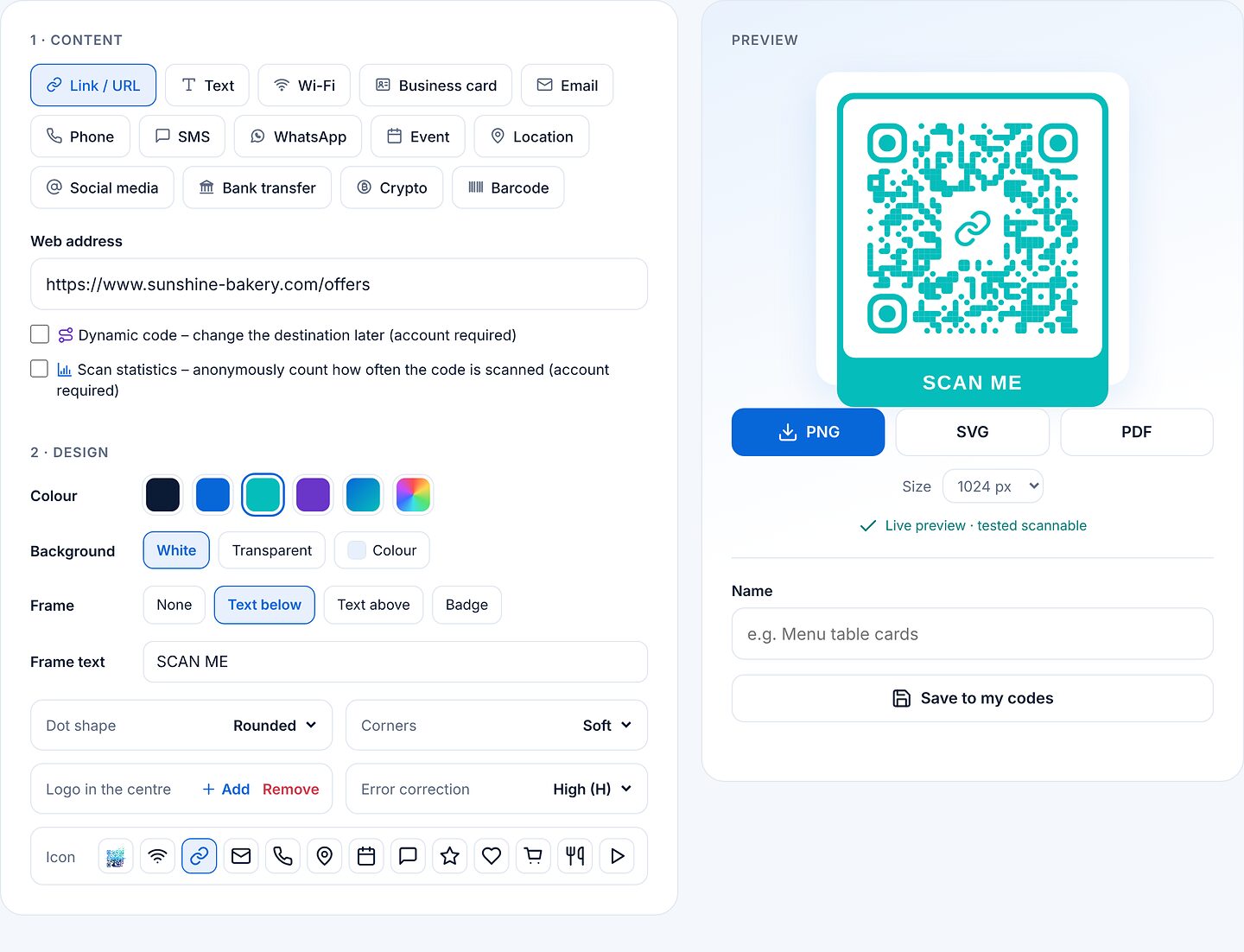
Choose “Wi-Fi”, enter the network name (SSID) and password, and usually leave security on WPA/WPA2/WPA3. Guests scan the code and are online without typing. The “Wi-Fi sign” template under Templates turns it into a ready-made table sign.
Bank transfer (EPC QR code)
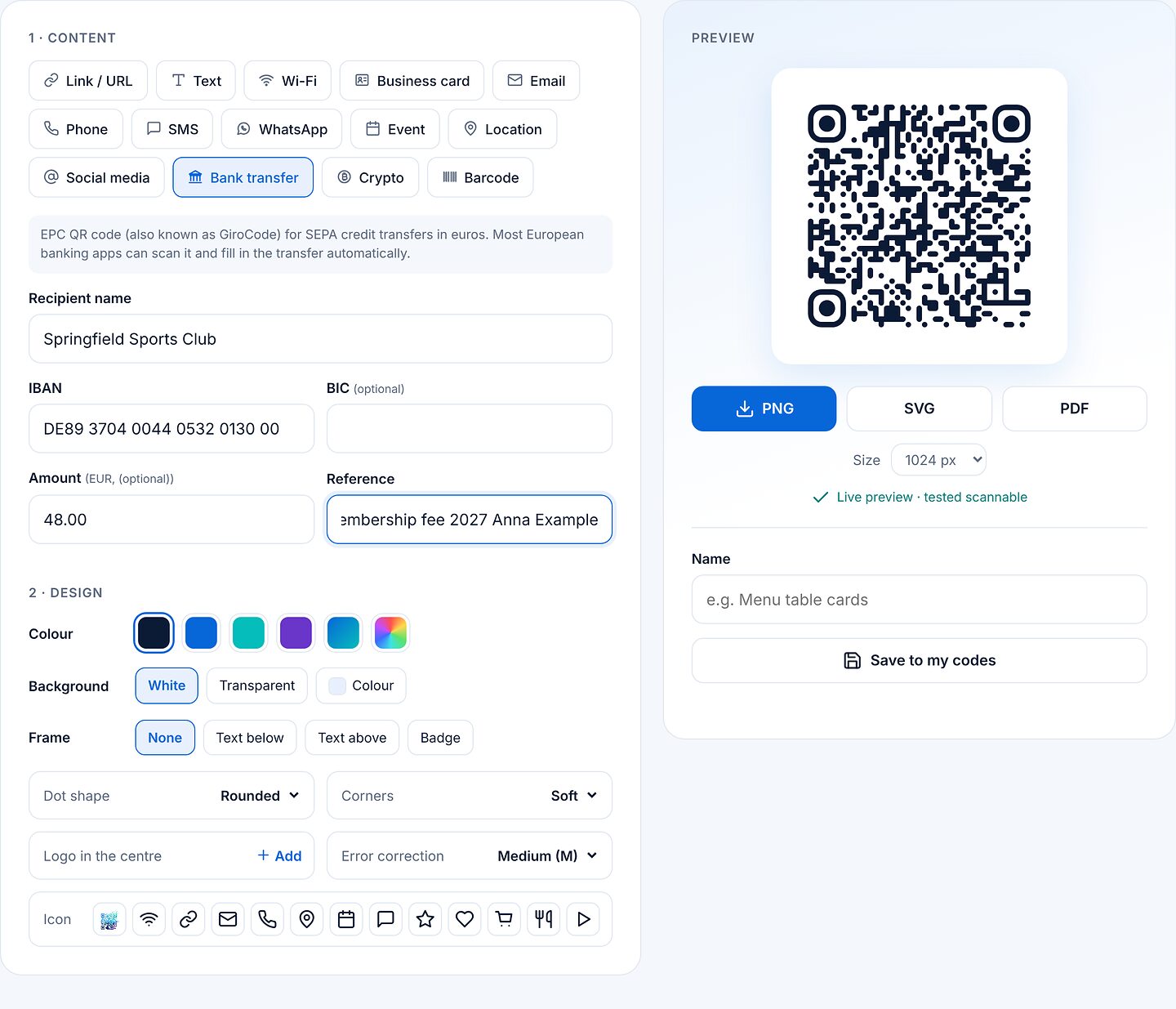
“Bank transfer” creates an EPC QR code (also called GiroCode) for SEPA transfers in euros: recipient, IBAN, amount and reference. Most European banking apps fill in the transfer automatically. The IBAN is checked as you type.
Barcodes
Under “Barcode” you choose the type: EAN-13, EAN-8, UPC, Code 128, Code 39, ITF-14 or Codabar. For EAN, UPC and ITF-14 the check digit is added automatically.
Saving
Enter a name below the preview and click “Save to my codes”. The code is then listed under My codes and can be edited later. When you change a saved code, “Save to my codes” overwrites it; “Save as new” creates a copy.
Test codes with several phones before printing, especially with light colours, a large logo or a small print size. With a logo, a higher error correction level (Q or H) helps.
3Dynamic codes and scan statistics
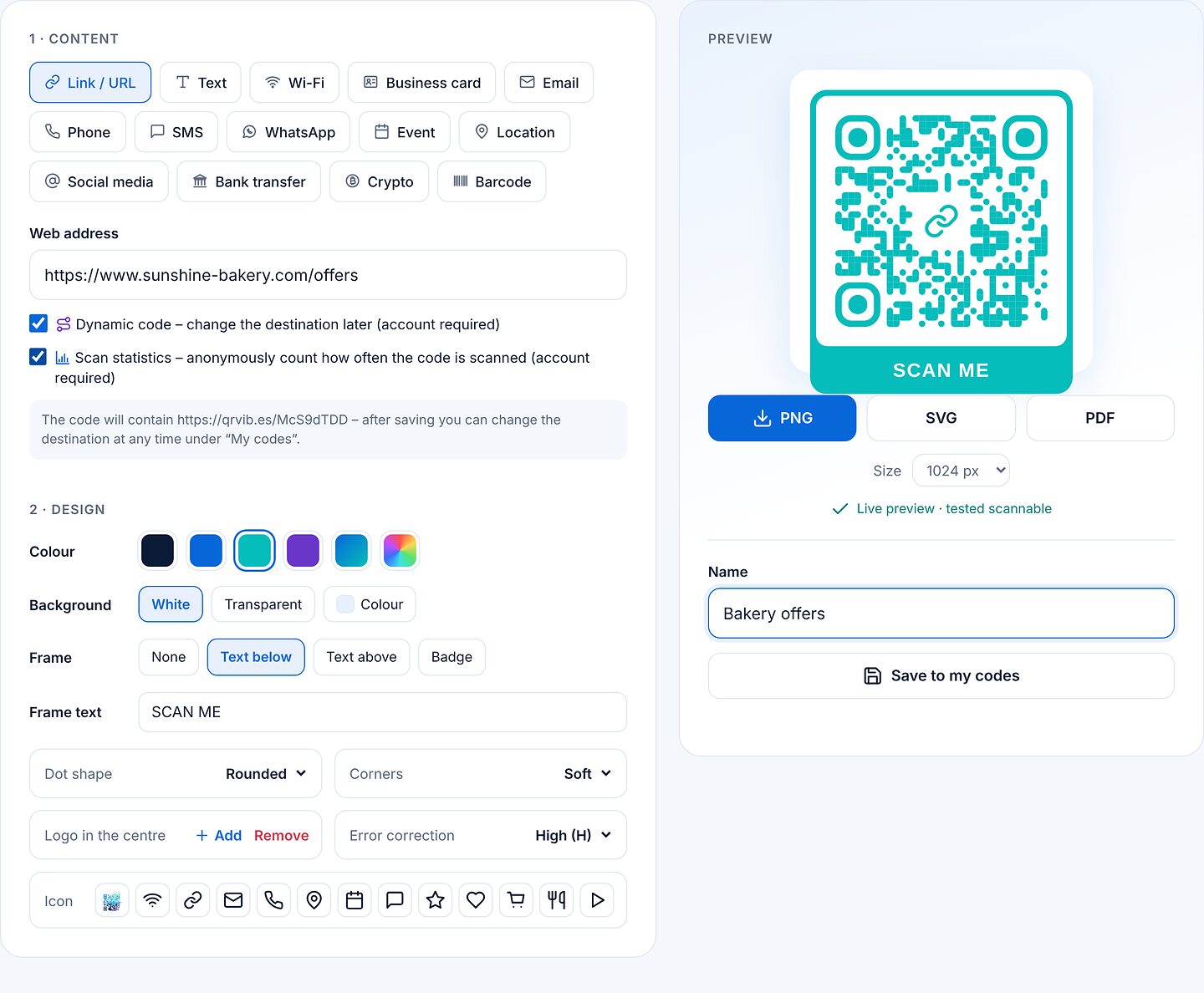
A dynamic code doesn’t contain your web address itself but a short link such as qrvib.es/AbC23xyz. It forwards to your destination, and you can change the destination at any time without reprinting the code. You need an account for this.
- Under “Link / URL”, enter the web address and tick “Dynamic code”.
- Optionally tick “Scan statistics” if you want to see how often the code is scanned.
- Give it a name and click “Save to my codes”. The short link only becomes active then.
Change the destination
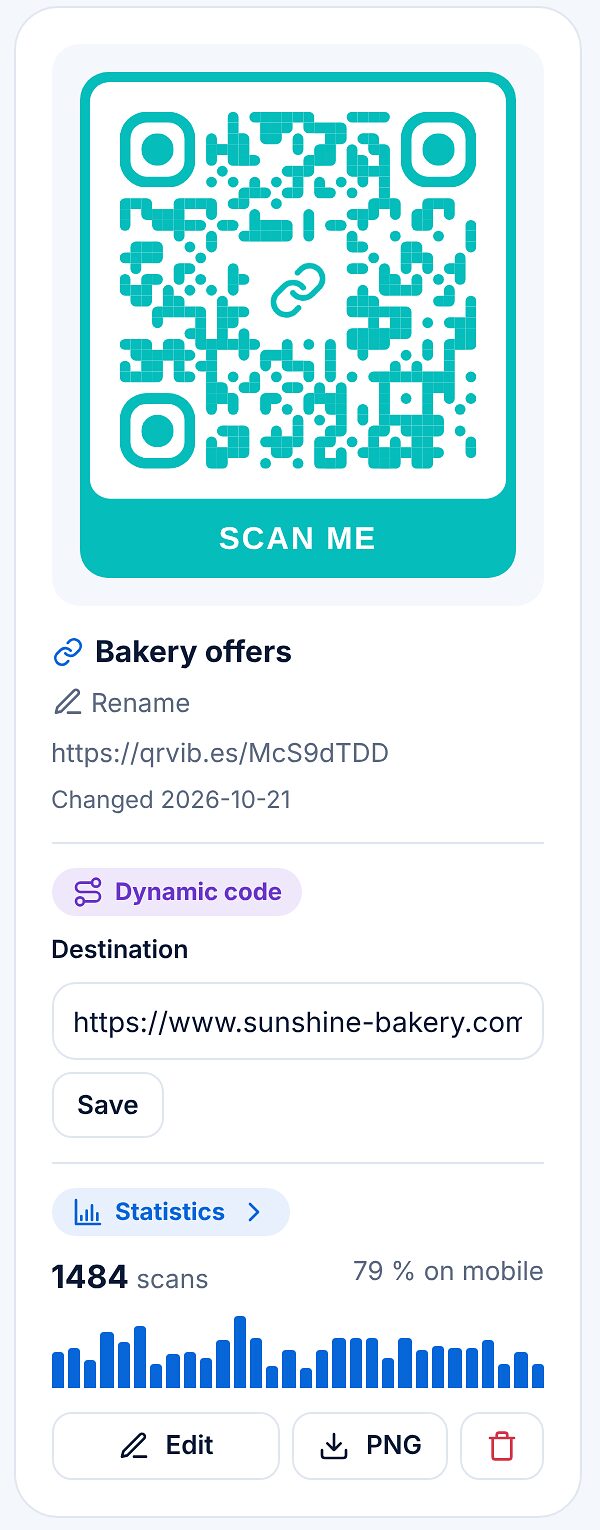
Under My codes, every dynamic code has a “Destination” field. Enter the new address, click “Save” – done. All codes already printed now lead to the new destination.
View statistics
Clicking “Statistics” opens the report: scans in the period and in total, today, average and best day, a chart per day, week or month, the share of mobile devices and the breakdown by weekday. You can choose 7, 30 or 90 days, 12 months or all time; “CSV” downloads the numbers.

Only the number of scans per day is counted, anonymously, without IP address and without cookies. Important: a dynamic code only works as long as it is saved in your account.
4Scan codes
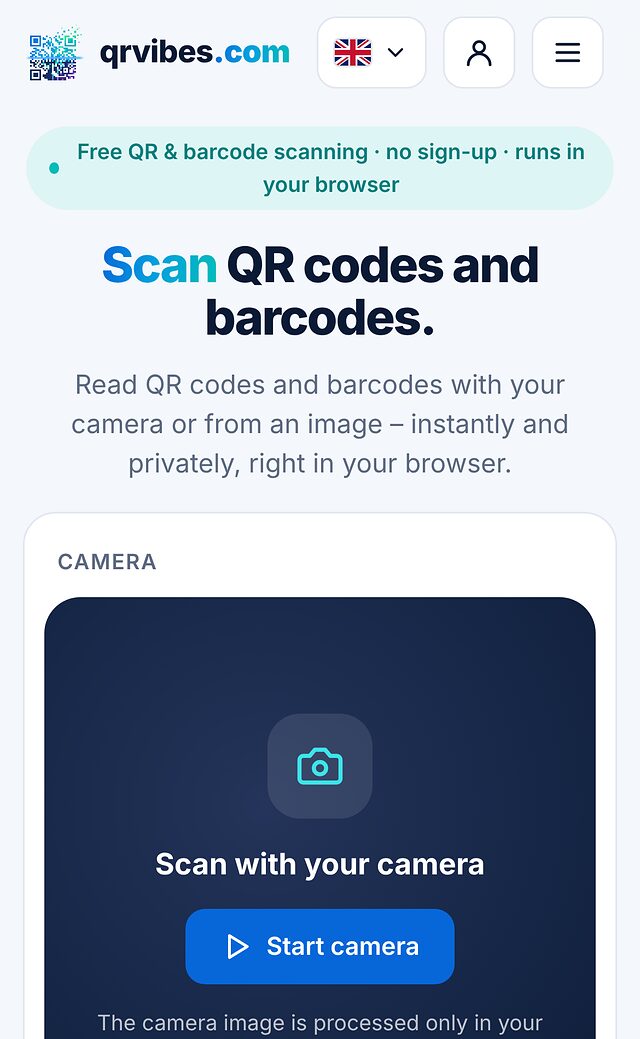
On Scan you read QR codes and barcodes – with the camera or from an image.
- Tap “Start camera” and allow camera access.
- Hold the code inside the frame. Scanning starts automatically; torch, zoom, full screen and switching cameras help with difficult codes.
- Without a camera: drag an image onto the page, “choose a file” or paste a screenshot with Ctrl+V.
The result
After the scan you see the content and suitable buttons, for links for example “Open link”, “Copy” and “Edit as QR”. Before you open a link, qrvibes.com shows the target domain and warns about red flags such as unencrypted connections, bare IP addresses or characters that imitate a well-known site. Your latest scans are kept as a history on your device only; “Clear” deletes it. Below, the “Report a suspicious QR code” box leads to the report form.
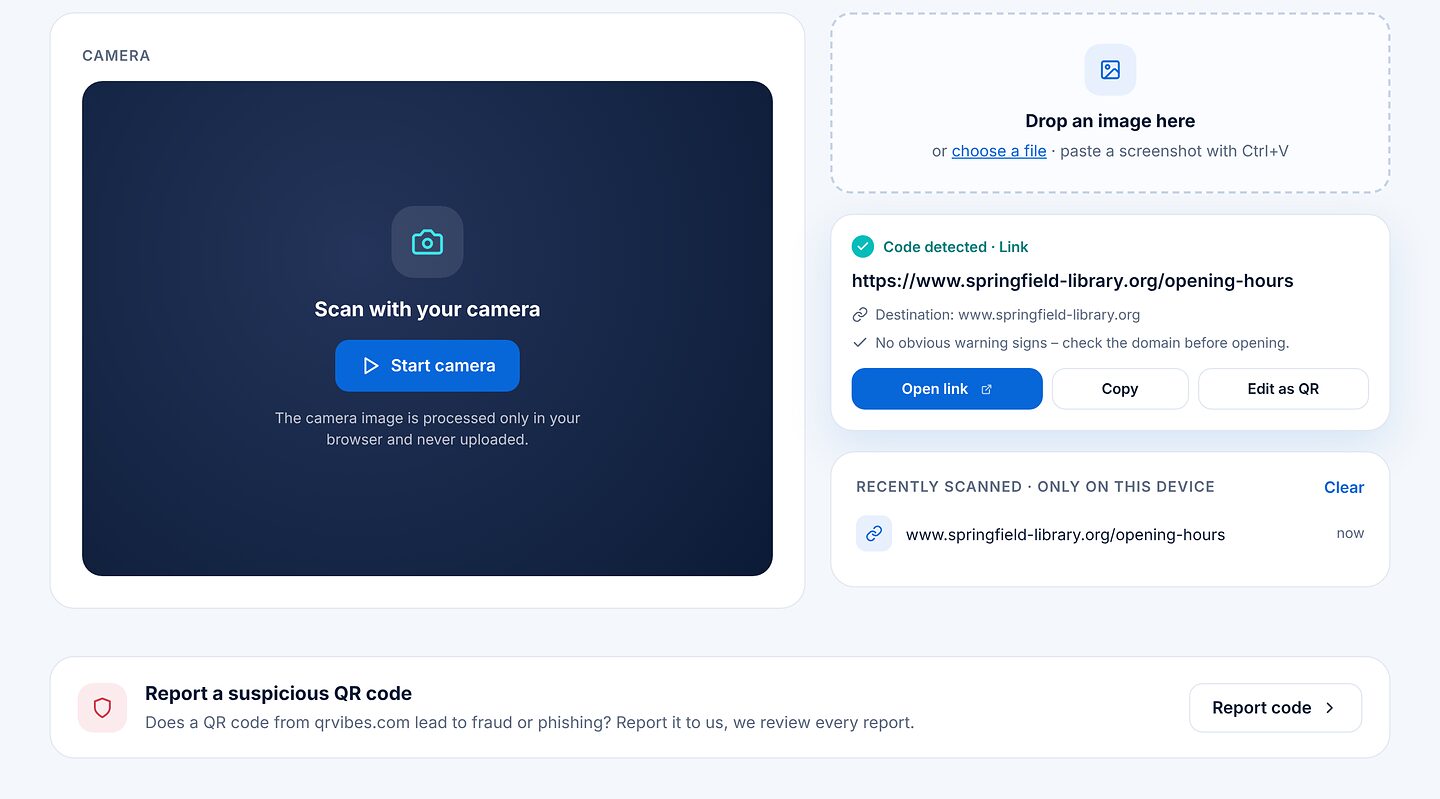
The camera image and your pictures are only analysed in your browser and never uploaded. If the camera doesn’t start, allow access in your browser settings and reload the page.
5Report a suspicious QR code
If you find a code from qrvibes.com that leads to a scam or phishing site, report it on the report page. You can reach it via the “Report a suspicious QR code” box at the bottom of the Scan page. You can report codes whose address starts with qrvib.es.
- Choose “Photo of the QR code” (the photo is only read in your browser) or type in the address.
- Select a reason, for example phishing, malware or fraud.
- Optionally say where you found the code and leave an email address for follow-up questions.
- Click “Send report”.
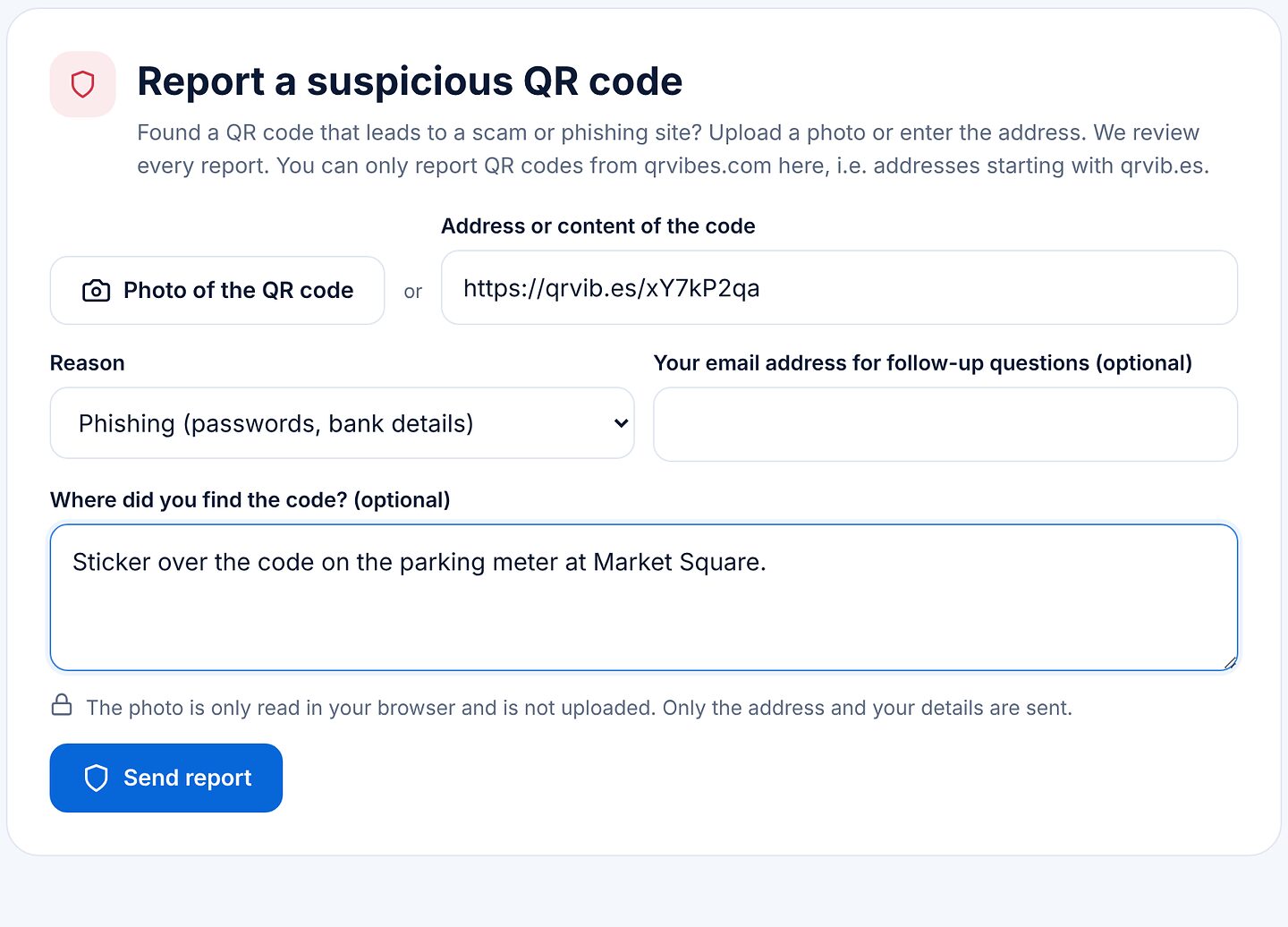
We review every report. If the suspicion is confirmed, the code shows a warning page before forwarding or is blocked completely.
6Templates for print and sharing
Under Templates you’ll find 22 print-ready templates with a QR code, such as a Wi-Fi sign, menu table card, business card, sticker, Save the Date, wedding invitation, birthday party or flea market. Use the buttons at the top to filter by category.
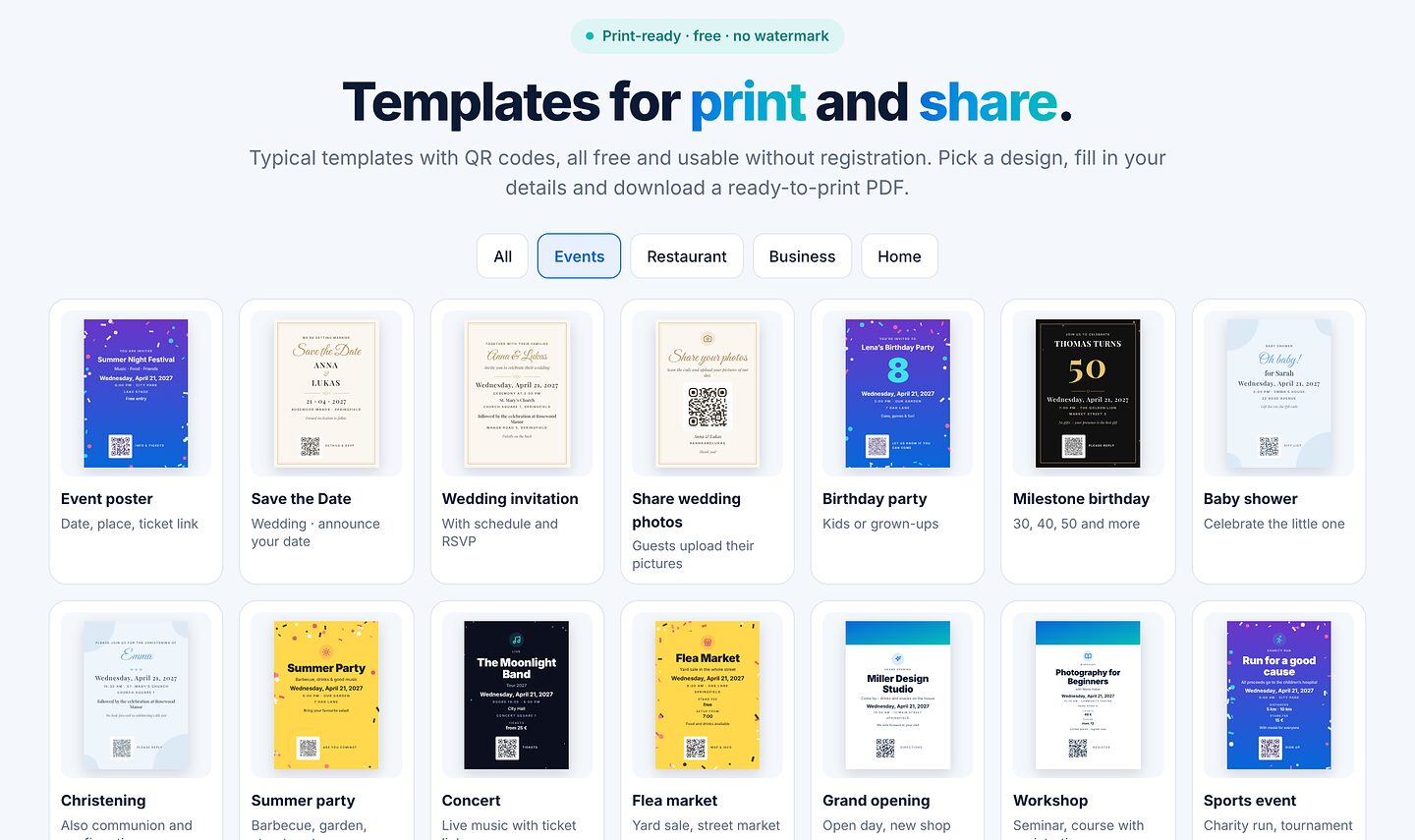
- Click a template.
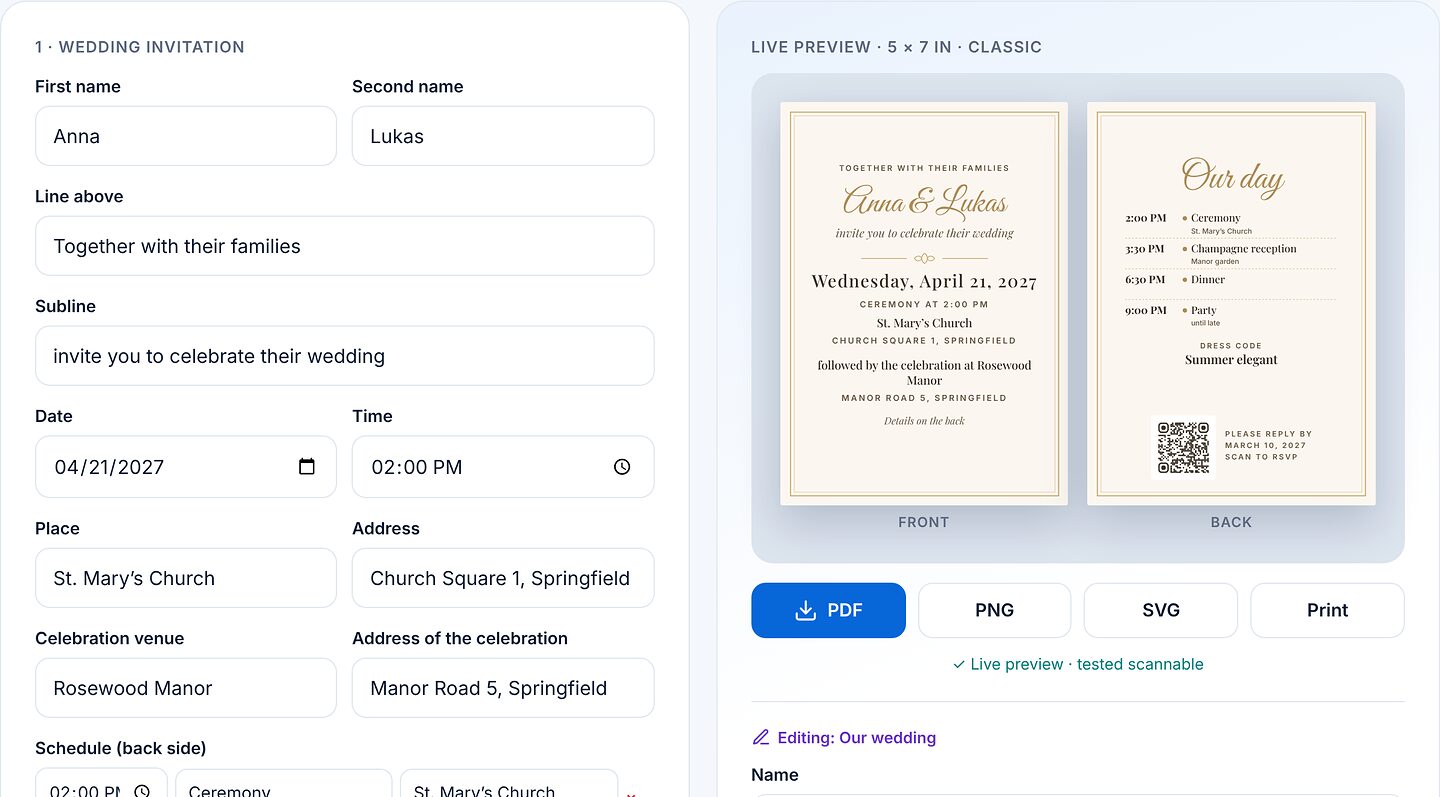
- Enter your details – the live preview shows the result immediately, for cards with front and back.
- Choose where the QR code leads (depending on the template: RSVP form, WhatsApp, email, link, calendar entry …).
- Pick a style and format, for example A4, A5, A6, business card, square or story for social media.
- Download as PDF, PNG or SVG, or “Print” directly. With an account you can also save the template.
7RSVP form for invitations
For invitations such as a wedding, birthday or Christmas party, the QR code can lead to an RSVP form. Your guests scan the code and accept or decline – no account needed. To create the form, you need a free account.
Create the form
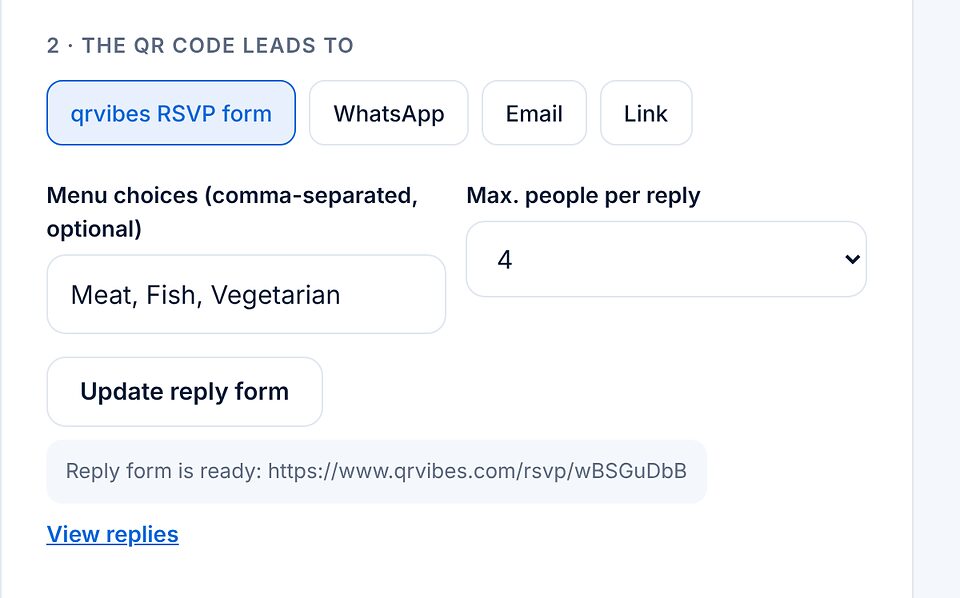
- In the template, under “The QR code leads to”, choose “qrvibes RSVP form”.
- Optionally set menu choices (for example Meat, Fish, Vegetarian) and the maximum number of people per reply. The reply deadline comes from the “Please reply by” field.
- Click “Create reply form”. The QR code then appears in the preview, and the “View replies” link takes you to the overview.
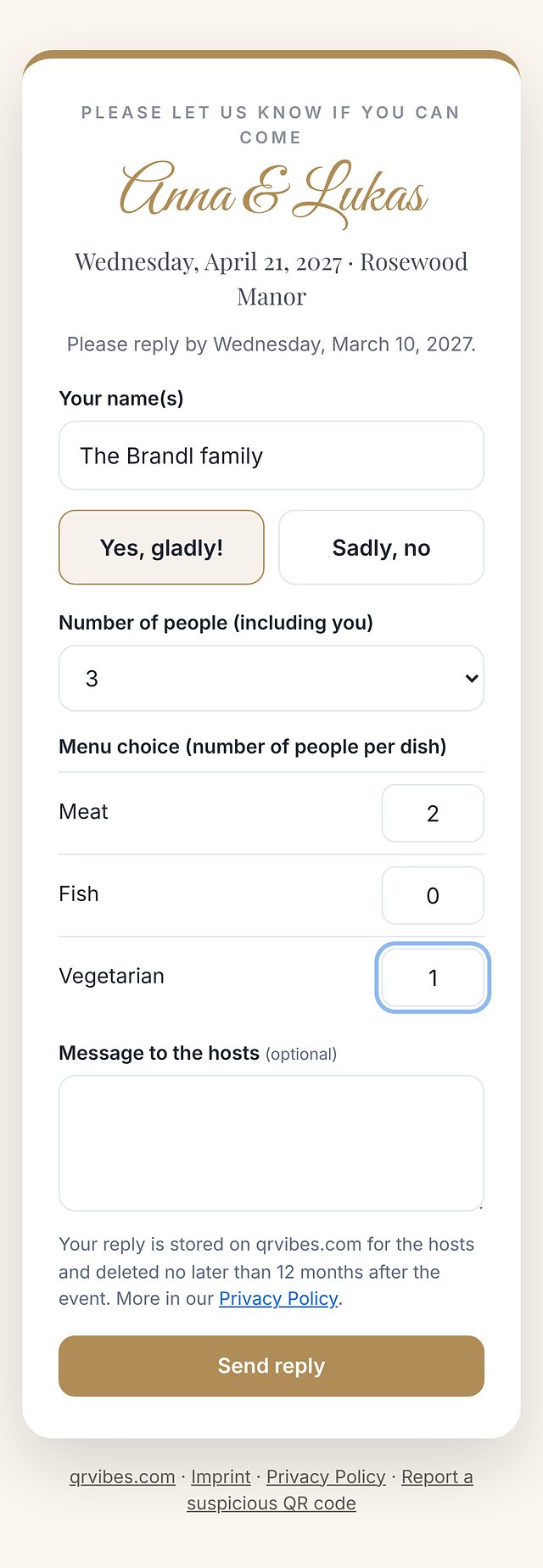
What your guests see
After scanning, the form opens in the style of your invitation. Guests enter their name, choose “Yes, gladly!” or “Sadly, no”, the number of people and, if offered, their menu, and can leave you a message.
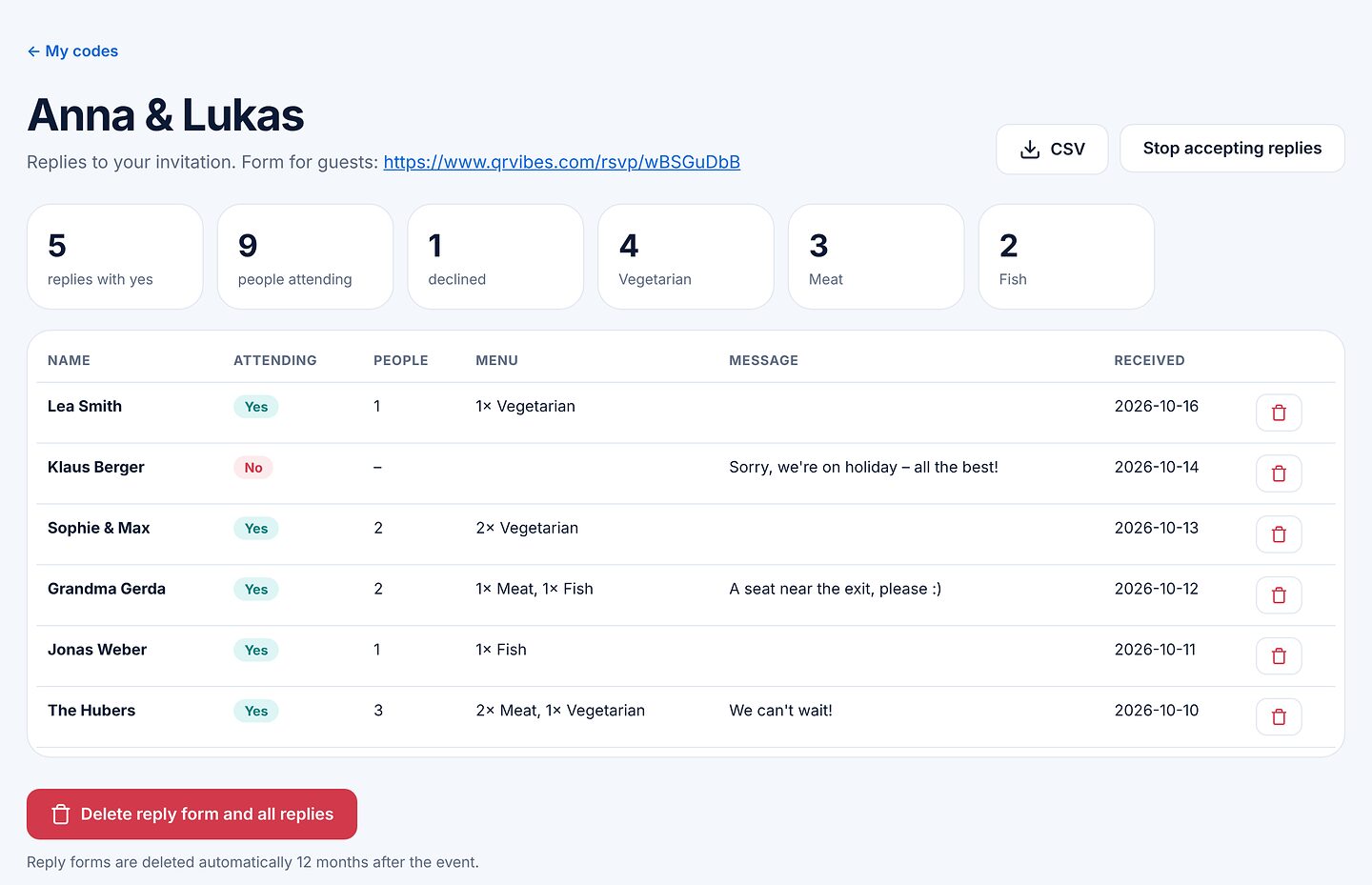
Review the replies
Under My codes → “Reply forms” you see acceptances, people, declines and menu choices at a glance, followed by every single reply. “CSV” downloads the list, for example for the seating plan. You can close the form (“Stop accepting replies”), reopen it and delete individual replies.
RSVP forms and replies are deleted automatically no later than 12 months after the event.
8Bulk: many codes at once
With Bulk you create up to 500 codes per run, for example for table numbers, inventory or tickets.
- Paste a list (one code per line, optional name after a semicolon) or drop in a CSV file: first column content, second column name.
- Choose the code type (QR or barcode), colour, dot style and error correction.
- Choose the output: PDF sheet with 6 to 35 codes per page, ZIP with PNG or ZIP with SVG. If you like, the name is printed below each code.
- Click “Create and download”.
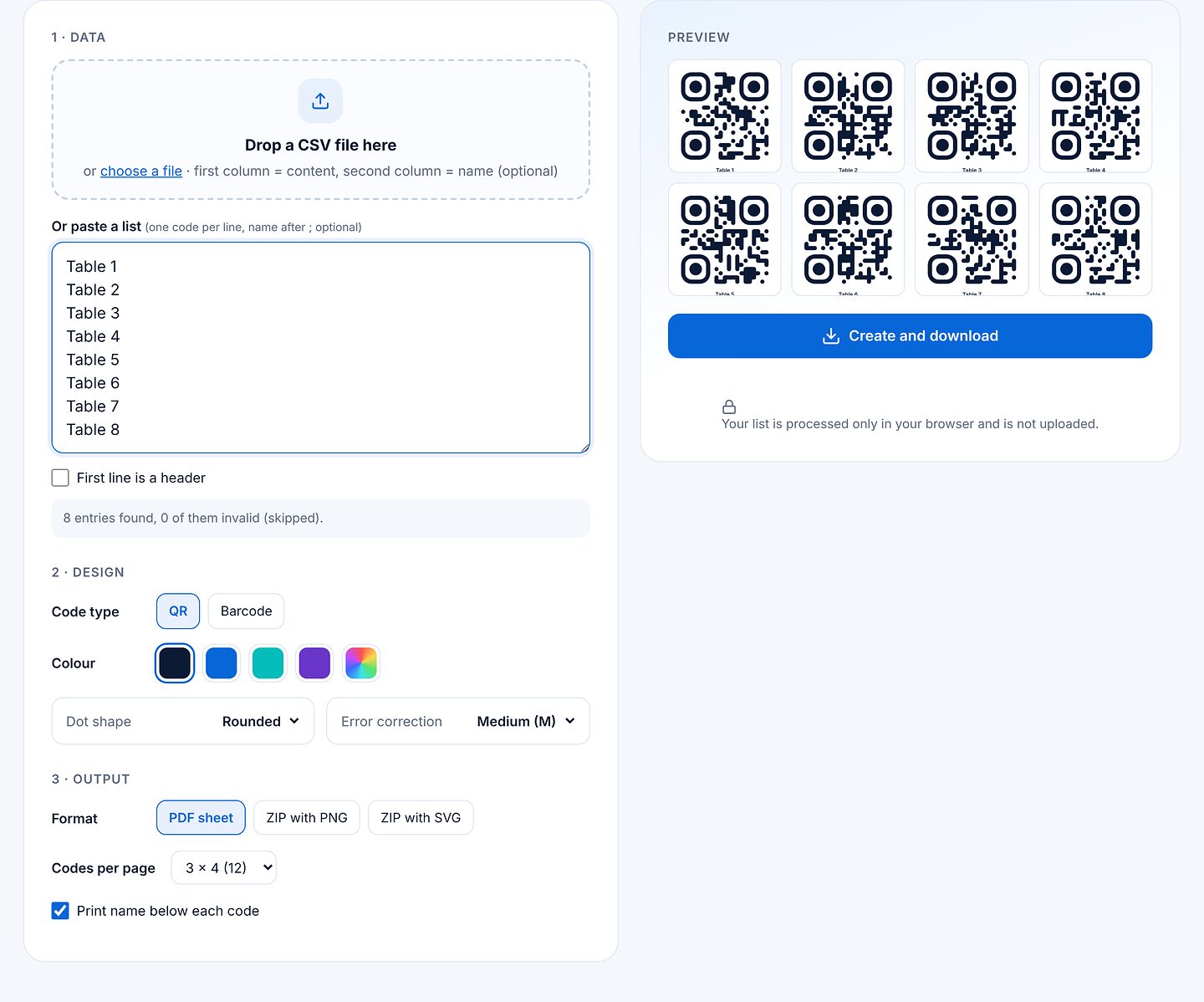
Your list is processed only in your browser and is not uploaded.
9My codes and account
Use “Sign in” at the top right to sign in or create a free account. Afterwards the button says “My codes”.
Saved codes
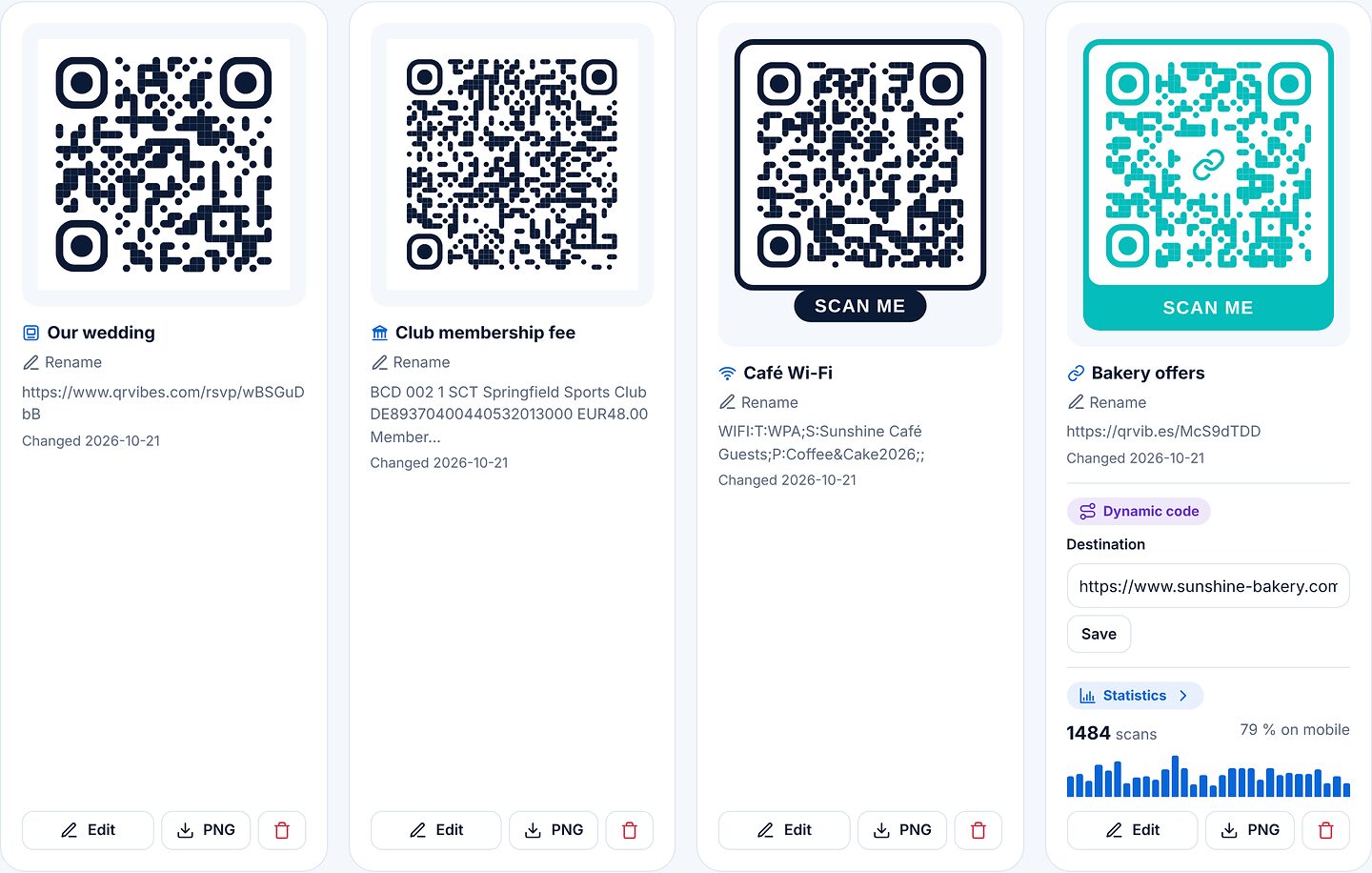
This is where all your saved codes and templates are listed with a preview. You can rename any code, “Edit” it (opens it in the editor), download it as PNG or delete it. Dynamic codes also show their destination and scan numbers. Each account can hold up to 500 codes, including up to 100 dynamic ones, and up to 50 RSVP forms.
Profile, password and your data
Further down you change your name and password. Under “Your data”, “Download my data” downloads all account data and codes as a JSON file; “Delete account” removes your profile and all codes immediately and permanently. Dynamic codes and RSVP forms stop working afterwards.

Forgot your password? Click “Forgot password?” when signing in. You’ll receive an email with a link that is valid for one hour.
Still have questions? You’ll find short answers in the FAQ, and you can reach us directly via the contact form.